
No products in the cart.







Setting up an Xbox Series S is simple when you follow the steps in order. Before you start, put the console on a stable surface with space around its vents, and keep the power cable, HDMI cable, controller and your Wi-Fi details nearby.
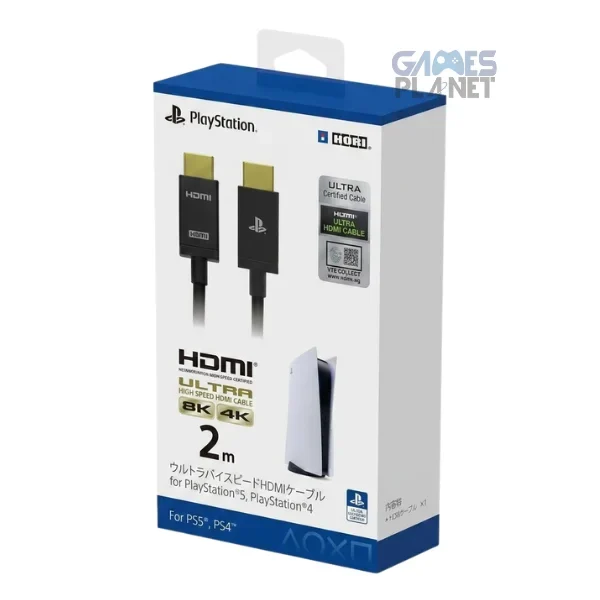
Plug the power cable into the console and a wall outlet. Connect the HDMI cable from the console’s HDMI output to a free HDMI input on your TV or monitor, then select that input on the display. Keep the ventilation openings clear and avoid enclosed spaces that trap heat.
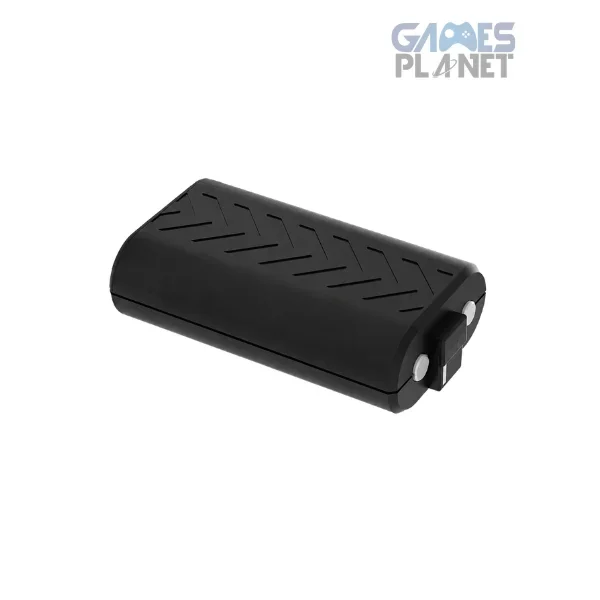
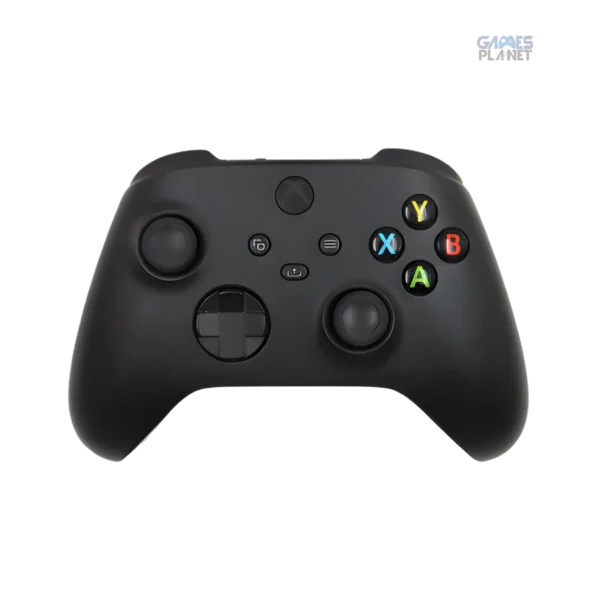
Power on the console and the controller, then follow the on-screen pairing steps. If pairing fails, check the batteries or charge level before assuming the controller is faulty, and use the official Xbox support guide if it still will not connect.
Choose your Wi-Fi network or plug in an Ethernet cable. Sign in with your Microsoft account or follow the prompts to create one. Use a strong, unique password and turn on available security features.
Let the console check for and install required updates. Keep it powered on and connected until it finishes. Update time depends on your connection speed and the size of the update, so avoid interrupting it unless official troubleshooting tells you to.
Open the display settings and choose a resolution and refresh rate that both the console and your TV or monitor support. For a high refresh rate, confirm the display supports it over the HDMI connection you are using. Test the audio and adjust accessibility options to your liking. Our specs guide explains what these options mean.
Browse the Xbox store or your library, check the edition and price, then start the download. Make sure you have enough storage and leave room for updates. If you use a subscription, confirm the game is currently included in your plan and region.
| Problem | What to try |
|---|---|
| No picture or no signal | Check the selected HDMI input, reseat the cable and try another port or cable |
| Wi-Fi will not connect | Restart the router and recheck the network password |
| Slow downloads | Check your connection and other network activity, or use Ethernet |
| Controller will not pair | Replace or charge the batteries and repeat pairing |
For persistent problems, use official Xbox support instead of opening the console yourself.
Find HDMI cables, controllers and charging gear for your Xbox Series S.
A standard package includes the console, a controller, a power cable and an HDMI cable. Confirm the contents on the exact listing you buy.
Yes. Connect it with HDMI and choose a resolution and refresh rate supported by both the console and the display.
Internet is needed for online sign-in, updates and downloading digital games. Exact setup steps can vary with the software version.
Check the selected display input and the HDMI connections, then follow the official Xbox troubleshooting steps.
Official sources: Xbox getting started · Microsoft Xbox Series S


Leave a comment